Integrate with Cline
Cline is an AI coding tool for autonomous coding, available as both a CLI and a VS Code extension.
I. Prerequisites
Obtain your API Key from the LongCat Platform, and confirm on the Usage page that your account has sufficient token quota.
The LongCat API platform currently provides the following models:
| Model Name | API Format | Description |
|---|---|---|
| LongCat-2.5-Preview | OpenAI/Anthropic | High-performance agentic model |
| LongCat-2.0 | OpenAI/Anthropic | High-performance agentic model |
II. Using the Cline CLI
1. Install the Cline CLI
Prerequisite: Node.js 20 or higher (Node.js 22 recommended).
Run the following command in your terminal to install Cline.
npm install -g clineRun the following command to verify the installation (a version number means success).
cline --version2. Configure the LongCat API
Configure the API provider via the cline auth command:
cline auth -p openai -k <Your LongCat API Key> -b https://api.longcat.chat/openai/v1 -m LongCat-2.5-PreviewParameters:
-p openai: select the OpenAI-compatible provider-k: your LongCat API Key-b: the Base URLhttps://api.longcat.chat/openai/v1-m: the model IDLongCat-2.5-Preview
You can also run cline auth to configure interactively via the wizard.
3. Using the Cline CLI
Open a new terminal and run the following command to launch it:
clineIII. Using the Cline VS Code Extension
1. Install the extension
Search for and install the Cline extension in the VS Code Marketplace.

2. Configure the LongCat API
Open the Cline extension in VS Code
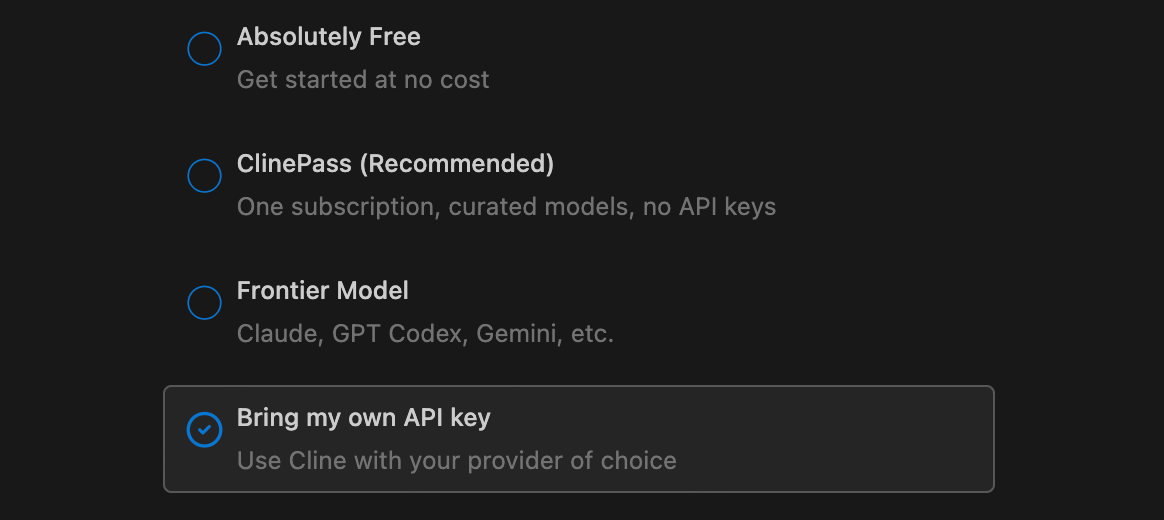
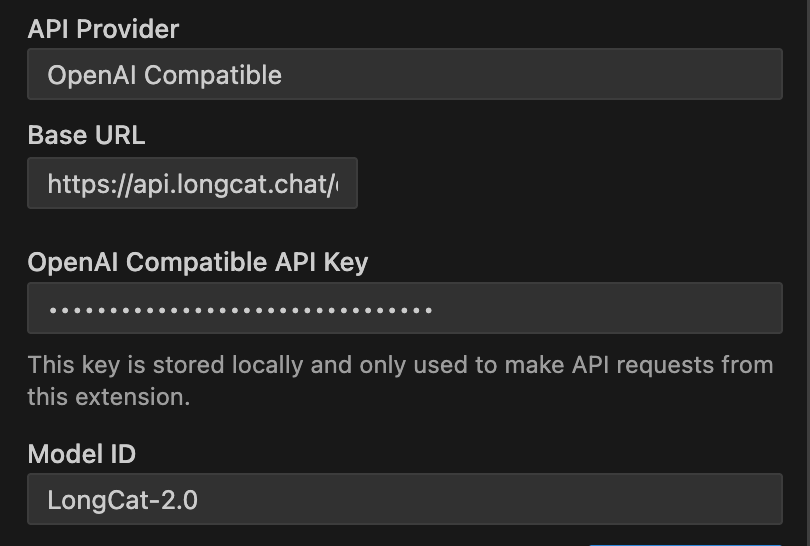
Required:
- API Provider: select
OpenAI Compatible - Base URL:
https://api.longcat.chat/openai/v1 - API Key: your LongCat API Key
- Model ID:
LongCat-2.5-Preview
Optional:
- Uncheck Supports Images
- Set Temperature to
1.0, and adjust as needed for your task
3. Using the Cline extension
Once configured, enter your request in the input box, such as generating code.